

How to Prepare for Your First Telehealth Appointment

Preparing for your first telehealth appointment means having your technology, medical records, and physical environment ready before the session begins. Patients who prepare first telehealth appointment logistics in advance report fewer technical disruptions and more productive conversations with their clinician. This guide covers every step: device setup, paperwork, joining the call, and handling the unexpected. Whether you are using a platform like SimplePractice or accessing care through a clinic portal, the same core principles apply.
What technology and environment do you need for your first telehealth visit?
Your device is the foundation of any virtual appointment. You need a smartphone, tablet, or computer with a working camera, microphone, and speaker. Before the day of your visit, confirm that your operating system and browser are fully updated, and check that your device battery is charged or plugged in. A dead battery mid-appointment is one of the most avoidable disruptions there is.
Internet speed matters more than most patients expect. Streaming video requires stable internet, and shared household usage significantly degrades call quality. If three people in your home are streaming video or gaming while you are in your appointment, your connection will suffer. Ask household members to pause heavy internet activity for the duration of your visit, and close any browser tabs or apps you are not using.
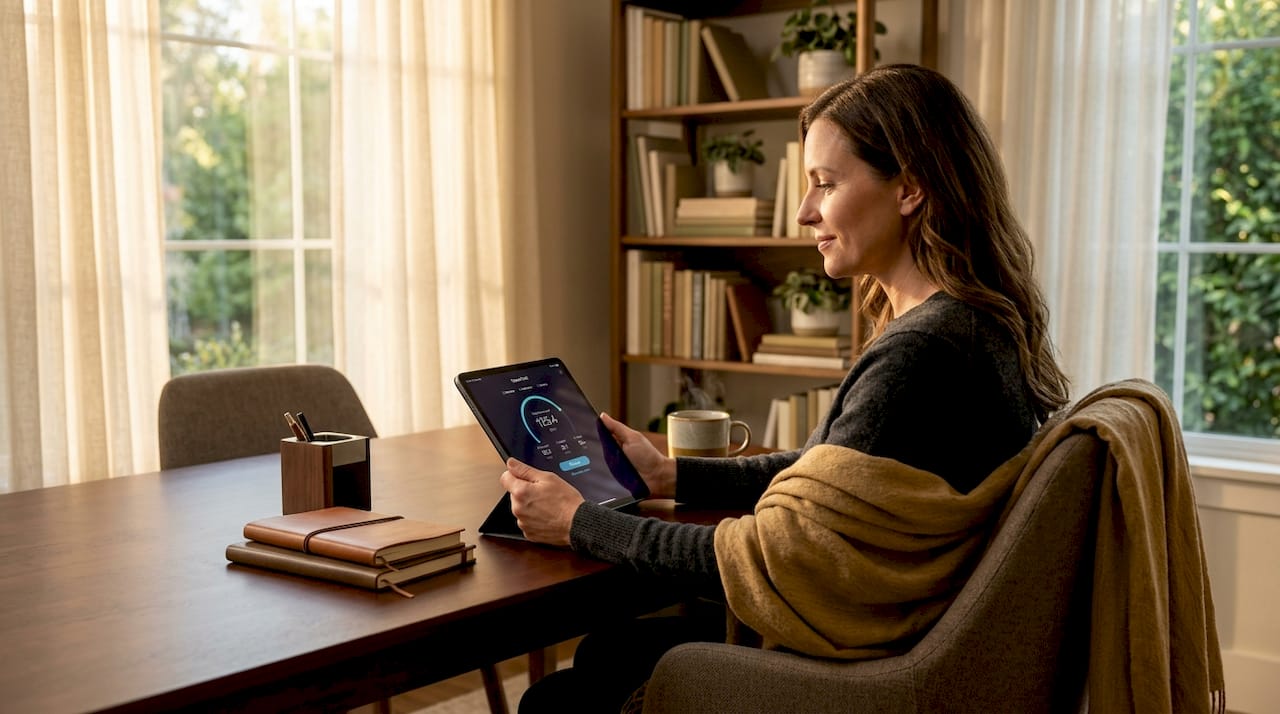
Your environment shapes the quality of the visit just as much as your device. The Neighborhood Health Center’s 2026 telehealth checklist identifies a quiet, private space with good lighting as a core requirement. Face a window or a lamp so your face is clearly lit. Avoid sitting with a bright window behind you, which turns you into a silhouette on your provider’s screen.
Here is what to confirm before your appointment:
- Camera, microphone, and speaker are functional
- Browser or app has permission to access camera and microphone
- Device is charged or plugged in
- Software and browser are updated to the latest version
- Household internet traffic is minimized
- Room is quiet, private, and well lit
- Background is neutral and free of distractions
Pro Tip: Position your camera at eye level rather than looking up or down at the screen. A laptop on a stack of books works perfectly. Eye contact at camera level reads as engaged and attentive to your provider.
How do you prepare your medical information and paperwork?
Medical information preparation is the step most first-time telehealth patients skip, and it is the one that most directly affects care quality. Pre-visit paperwork including insurance details, symptom descriptions, and medical history aligns your expectations with your provider’s workflow and shortens the time spent on administrative tasks during the visit itself.
Most clinics send forms through a patient portal or by email before the appointment. Complete these as early as possible, not five minutes before the call. If your provider uses a platform like SimplePractice, you may receive a link to fill out intake forms, consent documents, and insurance verification online. Completing these in advance means your clinician arrives at the appointment already familiar with your situation.
Gather the following before your visit:
- Current medication list with dosages
- Known allergies and past adverse reactions
- Recent lab results or imaging reports if relevant
- Insurance card and member ID
- List of symptoms with approximate start dates
- Questions you want answered during the visit
- Emergency contact information
The table below shows the most common documents requested at a first telehealth visit and why each one matters.
| Document | Why it matters |
|---|---|
| Insurance card and member ID | Confirms coverage and prevents billing delays |
| Medication list with dosages | Prevents prescribing conflicts and saves time |
| Allergy information | Critical for safe prescribing decisions |
| Recent lab results | Gives the provider objective data to work from |
| Symptom timeline | Helps the provider assess urgency and patterns |
| Signed consent forms | Required before care can be delivered legally |
Reviewing your privacy practices before the appointment is also worth doing. Understanding how your health data is stored and shared gives you confidence to share openly during the visit.
What are the practical steps to test your tech and join the call?
Testing your technology before the appointment is not optional for a first visit. A practice session with a friend or a test call on your platform significantly reduces stress and technical problems during the actual appointment. Think of it as a rehearsal. You would not give a presentation without checking the projector first.
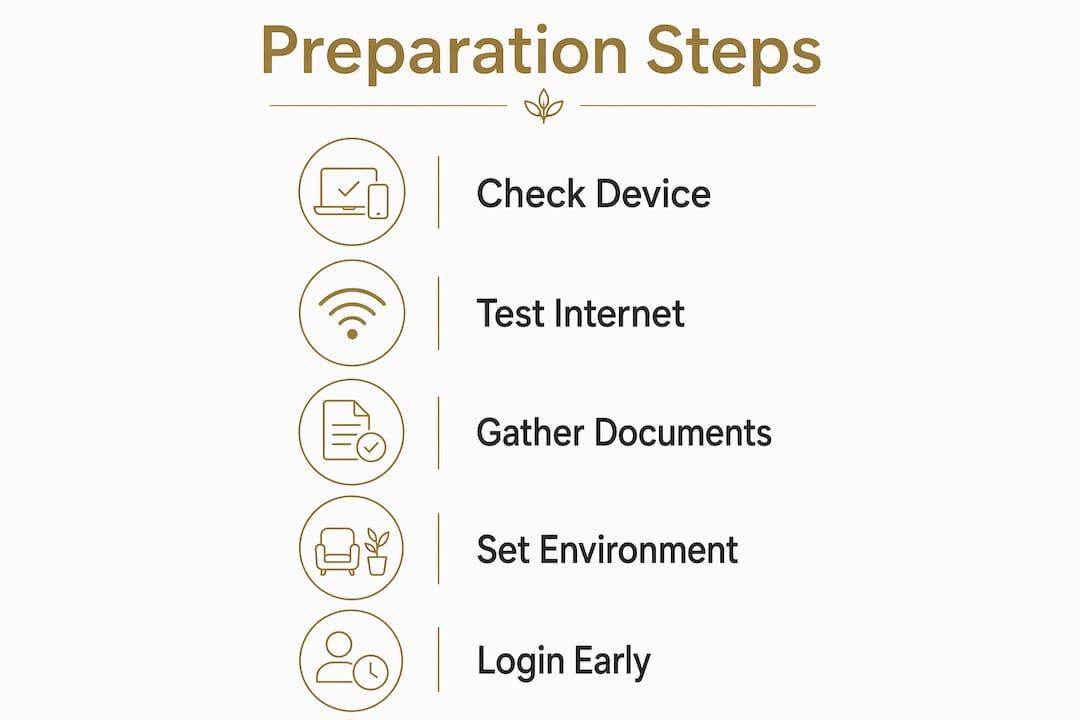
Follow these steps in order before your appointment day:
- Open the platform or browser you will use. If your provider sends a link, click it to confirm it opens correctly. If an app is required, download and install it at least 24 hours in advance.
- Run a camera and microphone test. Most platforms have a built-in test function. SimplePractice, for example, includes a “test call quality” prompt. Use it.
- Check your internet connection. Run a speed test at fast.com or speedtest.net. A stable connection of at least 10 Mbps download is sufficient for video calls.
- Do a practice call with a friend. Ask them to confirm your audio is clear, your face is visible, and your background is appropriate.
- Confirm browser permissions. Go to your browser settings and verify that camera and microphone access is enabled for the telehealth platform’s domain.
- Locate the appointment link. Find the email, text, or portal message from your provider and save the link somewhere easy to access.
- Log in 2 to 3 minutes early. Logging in early and waiting in the virtual waiting room mirrors the check-in process of an in-person visit and signals to your provider that you are ready.
When you join, providers using platforms like SimplePractice may ask you to enter your name and location. This is standard practice for identity verification and emergency contact purposes, not a technical glitch.
Pro Tip: Keep your device plugged into power during the appointment. Even a fully charged laptop can drain faster than expected during a video call, especially if your screen brightness is high.
How to handle common issues and what to expect during your first visit
Even well-prepared patients encounter technical hiccups. Audio lag, video freezing, and brief connection drops are the most common problems, and most are preventable with the camera, microphone, and environment checks described above. Knowing what to do when something goes wrong keeps the appointment on track.
Here is how to troubleshoot the most frequent issues:
- Audio cuts out: Mute and unmute yourself. If that fails, leave the call and rejoin using the same link.
- Video freezes: Refresh your browser tab. If the problem persists, switch to audio only within the platform settings.
- Cannot join the call: Clear your browser cache, try a different browser, or switch to your phone and dial in by phone number if the platform provides one.
- Connection drops entirely: Providers typically accommodate brief interruptions and rejoin after short drops. If video fails completely, most clinics can continue the visit by phone.
During the visit itself, expect your provider to verify your identity, confirm your location, and review the symptoms or concerns you submitted in advance. They will ask follow-up questions, discuss options, and confirm next steps before ending the call. The structure closely mirrors an in-person visit, just without the waiting room.
Privacy etiquette matters in a virtual setting. Use headphones if others are nearby. Close your door. If you are in a shared space, let the people around you know you are in a medical appointment. Your provider is bound by HIPAA, but your physical environment is your responsibility.
Key takeaways
A successful first telehealth visit requires device readiness, a prepared environment, complete paperwork, and a technology test run done before the appointment day.
| Point | Details |
|---|---|
| Device and environment first | Confirm camera, microphone, and lighting before anything else. |
| Submit paperwork early | Complete intake forms and consent documents through the patient portal in advance. |
| Test your technology | Run a practice call and check browser permissions at least 24 hours before the visit. |
| Join 2 to 3 minutes early | Log in before the scheduled time and wait in the virtual waiting room. |
| Know your troubleshooting options | Refresh, rejoin, or switch to phone audio if video fails during the call. |
What I have learned from watching patients walk into their first virtual visit
Most first-time telehealth patients underestimate how much the environment affects the appointment. I have seen patients join calls from noisy kitchens, backlit by windows, with their camera pointing at the ceiling. The provider spends the first five minutes just trying to hear and see them clearly. That is five minutes not spent on care.
The patients who get the most from their first virtual visit are the ones who treat it like a real appointment, because it is one. They sit down, they have their medication list in front of them, and they have already tested their camera. They are not scrambling to find the link or asking the provider to repeat themselves because of audio issues.
One thing I would push back on is the assumption that telehealth is inherently less personal than in-person care. That is only true when the setup is poor. A well-prepared virtual visit can be just as thorough and connected as sitting across from a clinician. The technology is not the barrier. Preparation is.
If you are anxious about the tech side, ask your provider’s office for a test call before the appointment. Most clinics are happy to do this. It takes ten minutes and eliminates the single biggest source of first-visit stress.
— Amy
Ready to start your telehealth care with Revive-meds?
Revive-meds makes the first visit straightforward. Before your appointment, you complete your medical consent forms online, so your clinician arrives already familiar with your health history, goals, and current medications. There are no membership fees and no waiting rooms.

Revive-meds specializes in whole-body care including GLP-1 therapies, peptide protocols, and hormone support, all clinician-reviewed and delivered to your door within 48 to 72 hours. If you are managing weight, hormones, or metabolic health, explore your options and book your first virtual visit today.
FAQ
What do I need for my first telehealth appointment?
You need a device with a working camera, microphone, and speaker, a stable internet connection, a quiet and well-lit private space, and any pre-visit forms your provider has sent. Completing paperwork in advance through your patient portal saves significant time during the visit.
How early should I log in to a telehealth appointment?
Log in 2 to 3 minutes before your scheduled start time. This gives you time to confirm your audio and video are working and allows you to wait in the virtual waiting room, which signals to your provider that you are ready.
What happens if my video drops during the visit?
Most providers accommodate brief connection drops and rejoin automatically. If video fails entirely, telehealth visits can typically continue by phone. Refreshing your browser or switching to a different device resolves most issues quickly.
What medical information should I bring to a telehealth visit?
Prepare your current medication list with dosages, known allergies, recent lab results, insurance information, and a written list of symptoms with approximate start dates. Having these ready before the call keeps the visit focused on care rather than administrative catch-up.
Do I need to download an app for telehealth?
Not always. Many platforms, including those used by clinics like Revive-meds, run directly in a web browser. Check your provider’s instructions in advance. If an app is required, download it at least 24 hours before the appointment to avoid last-minute technical problems.